Veeam Endpoint Backup 1.1.2.119
This post was published 10 years ago. Download links are most likely obsolete. If that's the case, try asking the uploader to re-upload.
Veeam Endpoint Backup 1.1.2.119 | 197 Mb
When it comes to your personal computer, you can never be too careful. Whether the system gets infected, fails to start or an application tampers with its configuration, you risk losing data, so creating backups is a must. Veeam Endpoint Backup is a powerful solution to help you out in this matter, providing intuitive tools for backing up important files, drives or even the entire PC.
Create a recovery image
Veeam Endpoint Backup is an all-in-one backup and recovery solution that focuses on ease of use, delivering straightforward wizards to help you get started and a user-friendly interface where you can view recently performed backups.
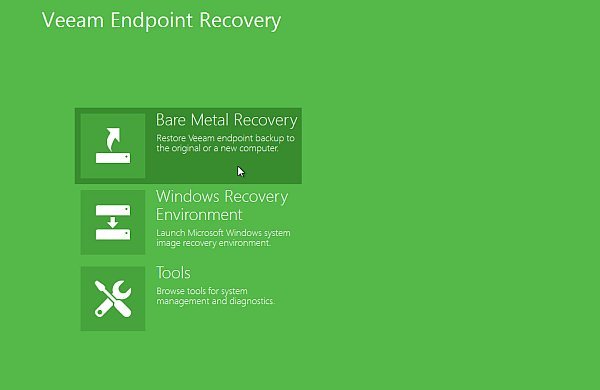
The first step is to create a recovery image of your computer, which Veeam Endpoint Backup cannot work without. The image is placed either on a removable storage device, a CD, a DVD or a BD media, or within an ISO file and used as an alternative booting method, in case your computer fails to start. During our tests, it took a little over three minutes to be generated.
Schedule backups of files or the PC
Thanks to the built-in wizard, creating a new backup is just a matter of a few clicks. Your system can be backed up to an external hard disk or other similar storage device, a shared NAS or directly to a Veeam Backup & Replication repository if you are using this application.
Veeam Endpoint Backup comes with scheduling options, so you can configure it to automatically run backup tasks on a daily basis. In order not to interfere with your work, it can efficiently manage the priority of running operations, reducing the array of resources it requires.
A worth-trying backup and recovery tool
Combining ease of use with advanced features, Veeam Endpoint Backup enables you to quickly create restore volumes and backups of important data.
Furthermore, it comes with integrated diagnostics and recovery options, helping you restore corrupted drives, individual files, or even the entire system to a previously working state. When hazard strikes, it is one of the tools you wish you had owned.
What's inside - Backup features
Veeam provides fast, image-based backup that is done at the block-level for full and volume-level backups, and on the file-level otherwise. With true incremental backup, only blocks changed since the last backup are copied, making volume-level backups extremely efficient when processing changes in large files.
Backup options include:
• Full backup: Get image-based backup for your entire PC while automatically excluding unnecessary files, like the Recycle Bin contents, temporary and page files
• Volume-level backup: Utilize block-level backup for selected drives or volumes on your computer (e.g., system volume, data volume, etc.)
• File-level backup: Choose individual file masks and folders to back up; the built-in wizard helps you quickly include standard system folders and personal files
Veeam Endpoint Backup FREE also helps optimize backup performance through:
• Flexible configuration: Create file masks to include or exclude specific file types from your backups, define retention periods, backup schedules and estimate backup file size on the fly
• Scheduling: Trigger backup jobs based on specific events, such as when backup storage is connected, when PC is locked or when a user logs off; it's smart enough not to start a backup more often than needed
• Backup throttling: Reduces the priority of the backup job process if the PC is busy with other tasks
Recovery features
Recovery options
Veeam provides you with several easy-to-use recovery options—all from the same image-level backup. Options include:
• Bare-metal restore: Restore your entire system to the same or different hardware
• Volume-level restore: Restore a failed hard drive or corrupted partition
• File-level restore: Restore individual files from ANY backup type in minutes!
Bootable recovery media
Veeam Endpoint Backup FREE lets you create a recovery image of your computer on several different kinds of media, including:
• Removable storage devices (e.g., USB flash drives, SD cards, etc.)
• CD/DVD/BD media
• ISO image
The recovery image provides an alternative way to boot your computer. If the OS installed on the computer fails to start for some reason, you can boot the OS from the recovery image and leverage the included recovery tools.
Built-in recovery tools
Veeam Endpoint Backup FREE includes proprietary diagnostic tools as well as some useful Microsoft Windows diagnostic tools to help you troubleshoot issues and accomplish advanced administration tasks, including:
• Reset password: Reset the password for the built-in administrator account
• Startup repair: Fix system problems that might prevent Windows from starting (e.g., missing or damaged system files, corrupted boot sector, etc.) Learn more
• Memory diagnostics: Check the system memory of your computer and detect potential problems after the next system reboot. Learn more
• Command prompt: Start the Microsoft Windows command prompt (cmd.exe)
• And MORE!
OS: Windows 7 / 8 / 10 (32/64-bit) and 2008 R2 / Server 2012