ControlMyNikon Pro v5.2.0.66
This post was published 10 years ago. Download links are most likely obsolete. If that's the case, try asking the uploader to re-upload.
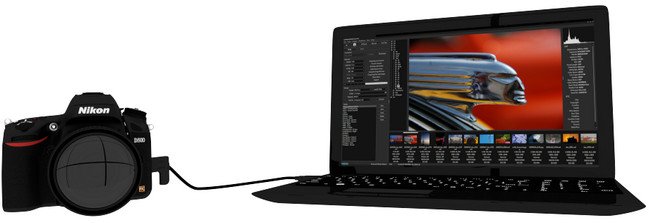
ControlMyNikon Pro v5.2.0.66 | 37.8 MB
ControlMyNikon is a professional tethering application for Nikon DSLRs that helps you capture images right from your desktop. It is able to handle from a simple remote control of your camera up to complex technical shots.
Supported camera models
The tool works with the following Nikon models: Df, D3, D3S, D3X, D4, D4S, D40, D40X, D60, D80, D90, D200, D300, D300S, D600, D610, D700, D800, D800E, D5000, D5100, D5200, D5300, D7000, and D7100.
Clean feature lineup
You are welcomed by a user-friendly layout that embeds an Explorer-like panel in the main window for helping you easily browse throughout the content of your files and folders stored on your PC.
Live view display
The program offers a live view of your camera on your computer monitor so you can shoot the perfect area and lets you remotely autofocus or manually alter the focus, zoom in or out of the scene, and review the exposure with the aid of a histogram.
Adjust camera settings remotely
ControlMyNikon gives you the freedom to alter your camera settings right from the main panel of the utility. You may adjust the shutter, aperture, ISO, delay, WB, and other parameters, and save settings with the aid of profiles which can be reused in the future for other photo shootings. For example, you can keep a profile for landscapes and another one for macro.
Different types of shootings
You may choose between several shooting modes, such as HDR, burst, time-lapse, stop motion, focus stacking and long exposure. The batch shooting feature can be used for importing a data file prior to your shooting sessions.
File management options
The utility makes it easier for you to name files and folders by embedding numbers, dates and data from batch shooting sessions. In addition, it is able to save a copy of your captured picture to another location, such as network or USB drive.
Support for different triggers
There are different ways for triggering the shutter. You may capture an image or movie by using your voice, web browser, electronic sensor, sound, mouse, phidgets, remote Powerpoint connections, external app or keyboard.
You can even create a live view motion trigger by specifying the target zone in the live view screen, so as to be able to capture photos when motion is detected in the zone.
Built-in image browser
The image browser is used for examining and assessing the quality of your images with the aid of zoom functions. In addition, you can review metadata, perform searches, work with an image magnifier, edit items in an external editor, filter data by extension, and switch to a full screen mode.
Configuration settings
You can make use of shortcuts for fast actions and reassign them, change the looks of the utility by applying different themes, add default metadata (copyright and credit), automatically connect at startup and enable the live view, activate the barcode scanner, set the clock, and check out the battery level.
A reliable and smart tethering app
In conclusion, ControlMyNikon can be successfully used for product, school, lab or other shoots that require accurate image captures. It delivers an intuitive layout and excellent output results but it eats up CPU and memory so the overall performance of the system may be burdened.
What's New in This Release:
New - Bodies: Added support for the Nikon D5500.
New - Feature: Added Pulse Workflow. It captures an image at a defined interval and continues capturing until it is cancelled, or 10,000 images have been captured. Think of it as a very basic time-lapse function.
New - Feature: Added Bulb workflow. Set shutter speed to Bulb, then select duration and click on Capture to start. Capture terminates after duration or if you click on 'Cancel'. This is a simpler workflow than the Long Exposure, which has more features.
New - Feature: Fast preview focus stacking. The Focus Stacking preview will now save the live view images (640x424 low quality jpegs) so that you can quickly analyze the depth of field coverage. You can even send the stack to Zerene Stacker for a very quick preview stack. Much faster than capturing all the full-size images and stacking them to see how will turn out. Note: The aperture used for each captured image depends on the body and mode used. Some bodies will override your set Aperture and set it to the minimum f value when live view is active, which is going to give you preview images at the wrong depth of field. Setting the body to Manual mode and also setting it to show the actual exposure in live view is usually needed to ensure that the aperture used is what you set it to be. For some bodies, there is no way to do this. This is a firmware limitation. You can disable the image saving portion of the preview by disabling it in the preferences screen, Stacking tab. To help make preview stand out from captures, preview folders now have a '__' prefix when the subfolders option is enabled.